Notion Calendar Exporter lets you put your Notion todo items on your calendar, even if you don’t use Google Calendar. It generates an iCal file that is uploaded to S3 using a secret name. You can use that link in your calendar provider of choice.
Where to get it
https://codeberg.org/SamuraiLink3/notioncalendarexporter
Instructions are on the Readme on that page.
How it works
- Gets items in the specified Notion database
- Build iCal events using due dates
- Upload the generated iCal file to S3 using seeded UUIDs to make the link un-guessable
Background (aka story time)
The Problem
I’ve been moving more things into Notion (including this site), but my first task was moving my Todo List. Well… Not really a todo list… More like a pile of calendar reminders, random scheduled tasks in Apple Reminders, an Apple Notes shopping list, some stuff in a text file on the system I SSH into for work, the single Apple Sticky Note on my work computer, and the physical notebook that sits on my desk…
I’m a mess and my extreme proliferation of unconnected todo lists is also bad too.
At the start of this year, I swore to get more organized. I’m not much on New Years resolutions, but “getting organized” seemed helpful enough to try it out. Naturally, the first 6 months of the year, I did absolutely nothing to help achieve that goal in any way. After that, I explored a bit and decided to try Notion to manage my tasks.
Things being mini-databases in Notion was pretty alluring. Being able to slice-and-dice my tasks on various data fields is pretty cool. I can have views into that database to cover very specific vibes, like “Personal tasks that are related to project-work that involve 3D printing”. I’m mostly impulse-driven, so being able to take advantage of my whims is a super important part of how I get things done (ADHD-brain goes hard).
The big problem was: I had to remember to look at it.
My calendar rules my life most days, so that felt like the best place to keep todo reminders. Notion supports calendar integration, but only for Google Calendar, and I’m a Fastmail guy. I needed a calendar file I could host and subscribe to. Thus this project.
Building the thing
This was my first project really putting Notion’s AI product through its paces with programming tasks. But, before I tell you how the AI performed, I want to give you my very abridged lukewarm-take on AI:
It can be useful in some applications, it doesn’t need to be in everything, it is problematic for many reasons, and it is incredibly over-hyped and over-used right now.
I really need to write a longer blog post diving into that rant, but that’s for another day.
Initially, I asked the AI to use a specific Notion Go library and write a function to query a task database. It hallucinated some constants that didn’t exist in the library, but the intent was correct (like writing SRTDSC instead of SortDescending ). It then added status field filtering after I asked it to.
Ok, pretty good so far.
So I tried giving it this instruction:
Fill out this function:
func getDescriptionFromTaskItem(p notion.Page) (details string) { }
I need the details string to contain the full page content as a string.
And it gave me this:
func getDescriptionFromTaskItem(p notion.Page) (details string) {
    var sb strings.Builder

    // Iterate through all blocks in the page
    for _, block := range p.Blocks {
        switch block.Type {
        case notion.BlockTypeParagraph:
            sb.WriteString(block.Paragraph.RichText[0].PlainText)
        case notion.BlockTypeHeading1:
            sb.WriteString("# " + block.Heading1.RichText[0].PlainText)
        case notion.BlockTypeHeading2:
            sb.WriteString("## " + block.Heading2.RichText[0].PlainText)
        case notion.BlockTypeHeading3:
            sb.WriteString("### " + block.Heading3.RichText[0].PlainText)
        case notion.BlockTypeBulletedListItem:
            sb.WriteString("- " + block.BulletedListItem.RichText[0].PlainText)
        case notion.BlockTypeNumberedListItem:
            sb.WriteString("1. " + block.NumberedListItem.RichText[0].PlainText)
        case notion.BlockTypeToggle:
            sb.WriteString("> " + block.Toggle.RichText[0].PlainText)
        case notion.BlockTypeCode:
            sb.WriteString("```\n" + block.Code.RichText[0].PlainText + "\n```")
        // Add more cases for other block types as needed
        }
        sb.WriteString("\n\n") // Add newlines between blocks
    }

    details = sb.String()
    return
}
It takes the formatted blocks converts them to markdown so they’ll show up nicely on the event description. I was pretty impressed here, I expected the simplest answer, but this was more complex and more useful than I had asked for. I even asked it to add todo checkboxes for subtasks, and it did.
One (admittedly nitpicky) complaint I had is how the bot wrote documentation:
// appendRichText appends rich text content to a strings.Builder, including formatting
// for bold, italic, and code annotations.
//
// Parameters:
//   - builder: A pointer to a strings.Builder to append the formatted text.
//   - richText: A slice of notion.RichText containing the rich text to process.
Its.. not really Go-like. Or at least not like I’m used to. I kept it because there’s nothing wrong with it, its just different.
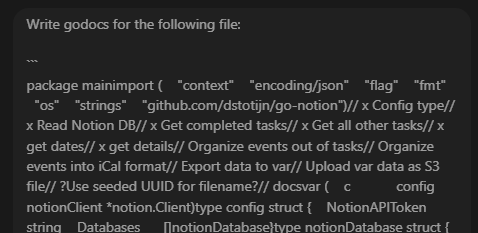
However my biggest complaint is the Notion AI interface. If “Help me with code” is a suggested question, please let me use code blocks, because this is fucking gross:
I’m particularly happy with my “secret” link generation though:
First, I set up some random UUIDs as namespaces:
uuidSecretPathNamespace1 = uuid.UUID{0x68, 0xc8, 0xc9, 0x0, 0xf5, 0x67, 0x46, 0x80, 0xb5, 0xd6, 0x3a, 0xf9, 0xde, 0x7, 0xc8, 0xc6}
uuidSecretPathNamespace2 = uuid.UUID{0x6f, 0xe, 0x61, 0xbe, 0x6c, 0x94, 0x45, 0x99, 0x86, 0x7, 0xb4, 0x34, 0xea, 0x20, 0x5c, 0xf4}
uuidSecretPathNamespace3 = uuid.UUID{0x38, 0x85, 0x6e, 0x83, 0xcc, 0xdb, 0x47, 0x5e, 0xbf, 0x51, 0xc7, 0x50, 0x91, 0x11, 0xd8, 0x32}
Every Notion database has a UUID that can be found in the URL. For example, here’s the URL for this website’s Content database:
Note: Since writing this post, the site has been moved to Hugo, so the Notion Content Database link is no longer valid.
https://www.samurailink3.com/118b678642418065bd9eeb8a463491cf?v=118b6786424181de8359000c0111fac0
In this case 118b678642418065bd9eeb8a463491cf would be the ID.
This uses our random UUID namespaces set above to create three brand new UUIDs from that one ID:
path1 := uuid.NewHash(sha256.New(), uuidSecretPathNamespace1, []byte(id), 5)
path2 := uuid.NewHash(sha256.New(), uuidSecretPathNamespace2, []byte(id), 5)
path3 := uuid.NewHash(sha256.New(), uuidSecretPathNamespace3, []byte(id), 5)
Then we string that together:
return path1.String() + "/" + path2.String() + "/" + path3.String() + ".ics"
And that gives us our S3 “secret” URL.
It ends up looking like this:
And because this is based on the underlying Notion database ID, its consistent.
The rest of the project just involved me reading the RFCs for iCal objects and iCal Interoperability, then using github.com/emersion/go-ical to build a calendar of events.
Future plans
I’m trying out using Notion as a household organizer, so eventually, both my and my wife’s todo items will be in a shared database. When we do that, I’d like to be able to generate different iCal files based on assignee. Easy enough to do, I just need to find the time to do it.